
Getting started with Still Good
Add your first item, then let Still Good track it and remind you before it expires.
Welcome to Still Good. This guide takes you from your first item to a kitchen that tells you what to use up next.
1. Get the app
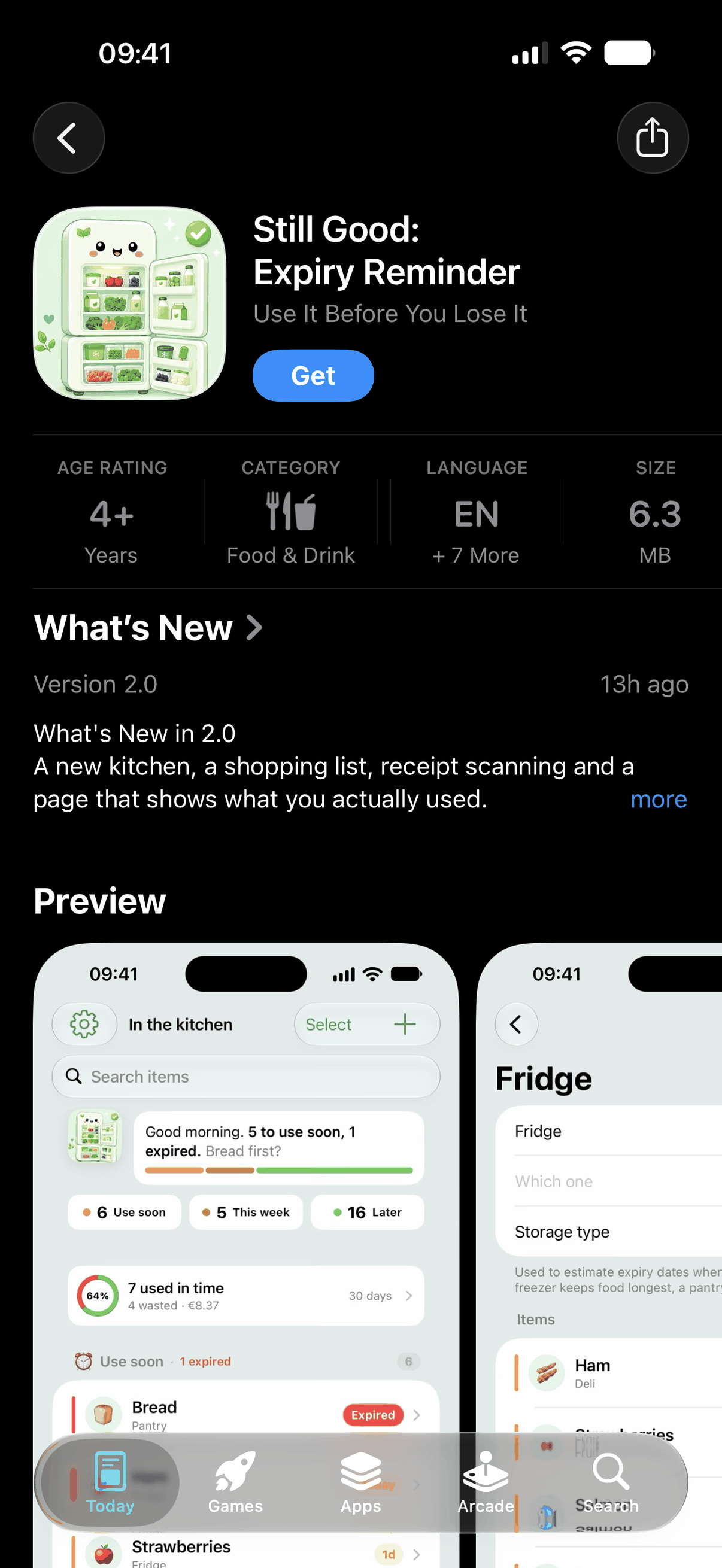
Find Still Good on the App Store and tap Get to install it, then open the app to get started.
2. Scan an item as you put it away
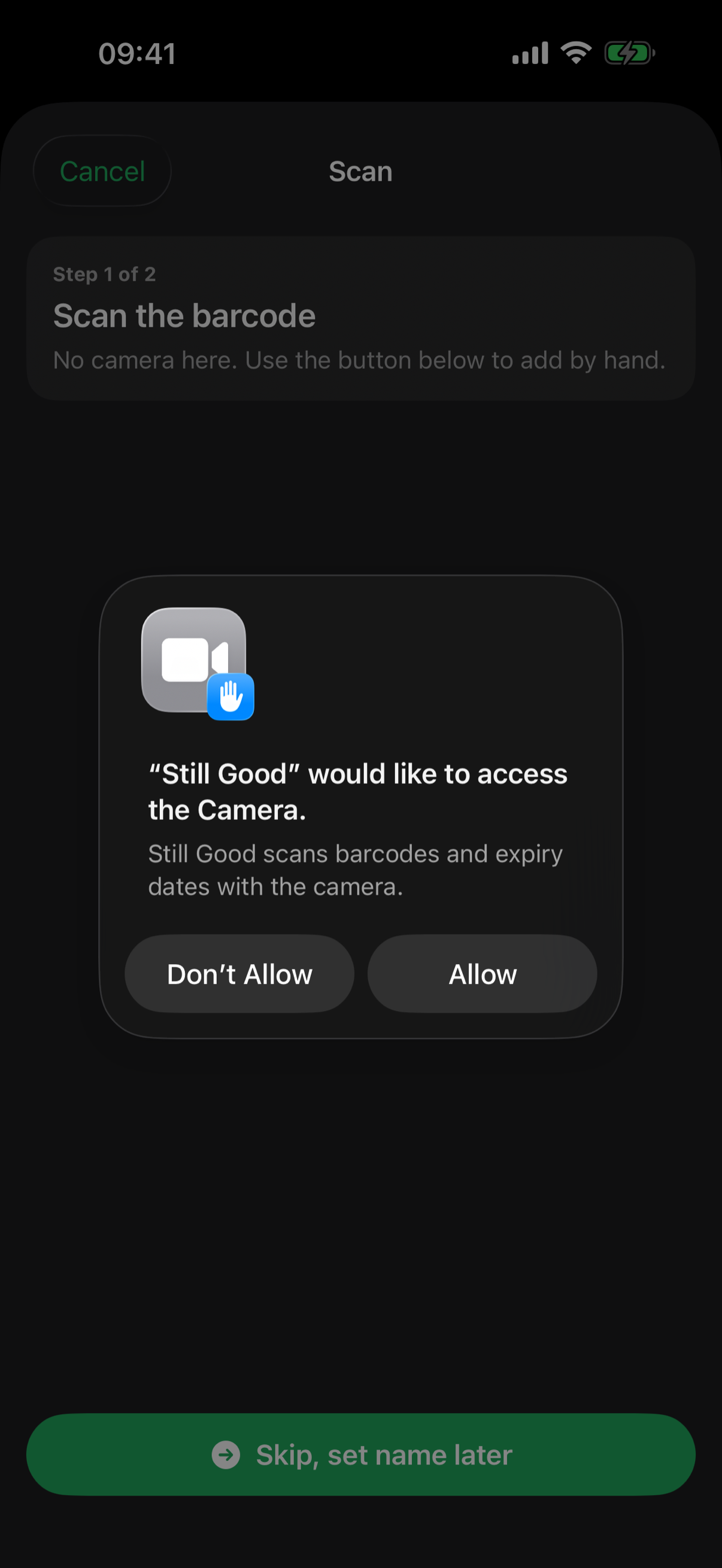
Tap the scan button and allow camera access. Point your phone at the barcode or the printed best-before date, and Still Good fills in the details for you. No barcode handy? Tap Skip and add it by hand.
3. Or add an item by hand
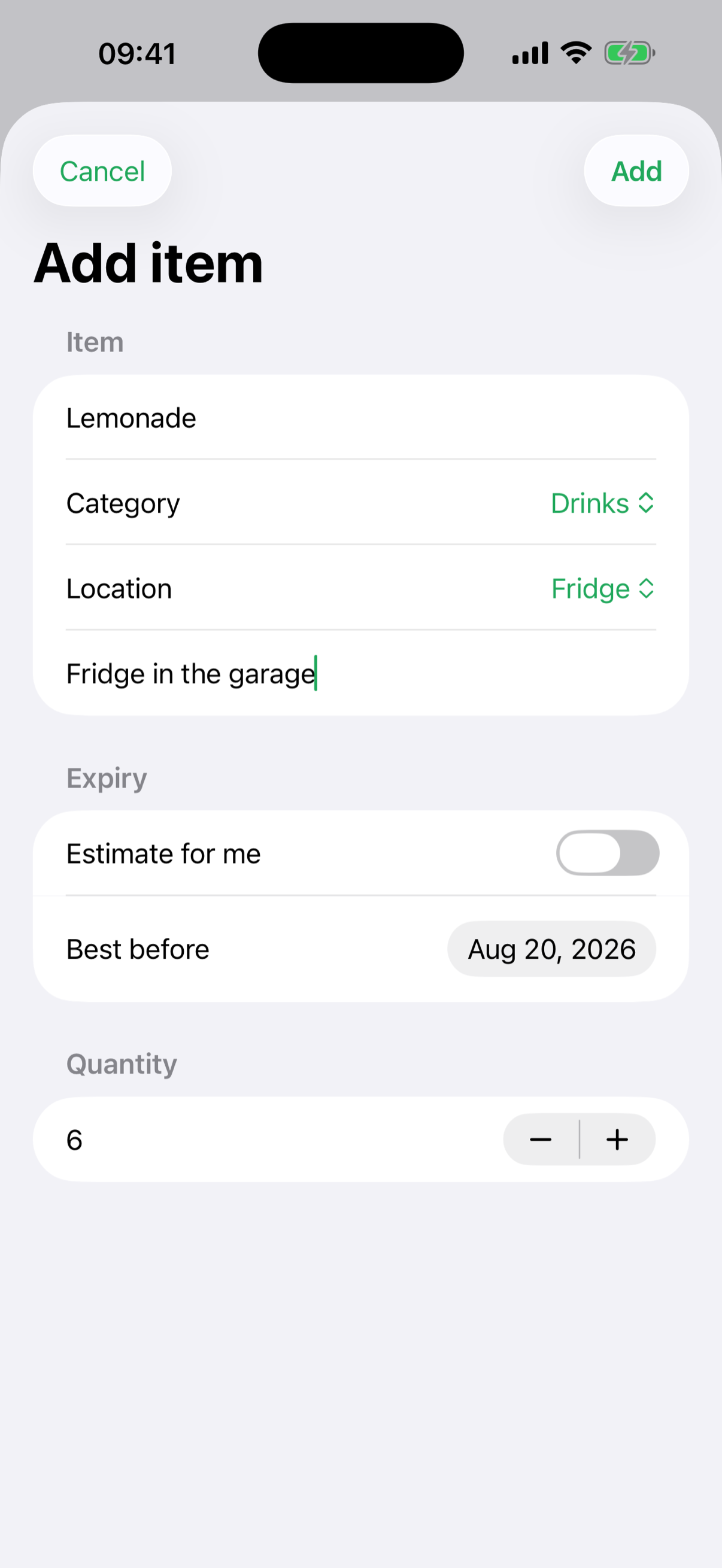
Type the name and choose a category. The place follows the category, so dairy goes to the fridge and pasta to the pantry, unless you pick another. Not sure of the date? Leave Estimate for me on and Still Good works it out from the food and where you keep it.
4. Or scan a whole receipt
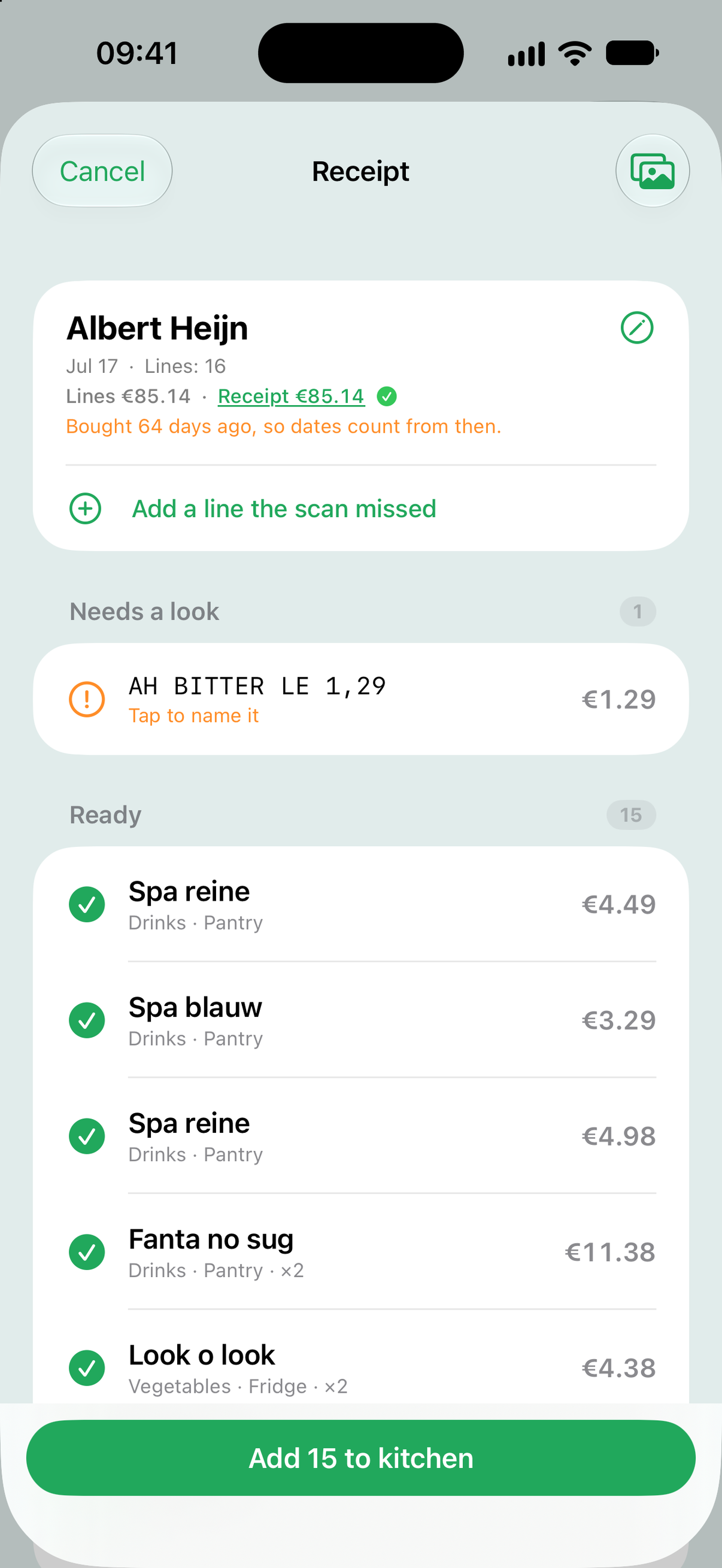
Just back from the shop? Open the Shopping tab, tap Scan a receipt, and photograph it, or pick a photo of it. Every line becomes an item in your kitchen with its price, and you check the lines before anything is added. Paper receipts and receipts from supermarket apps both work.
5. See what to use first
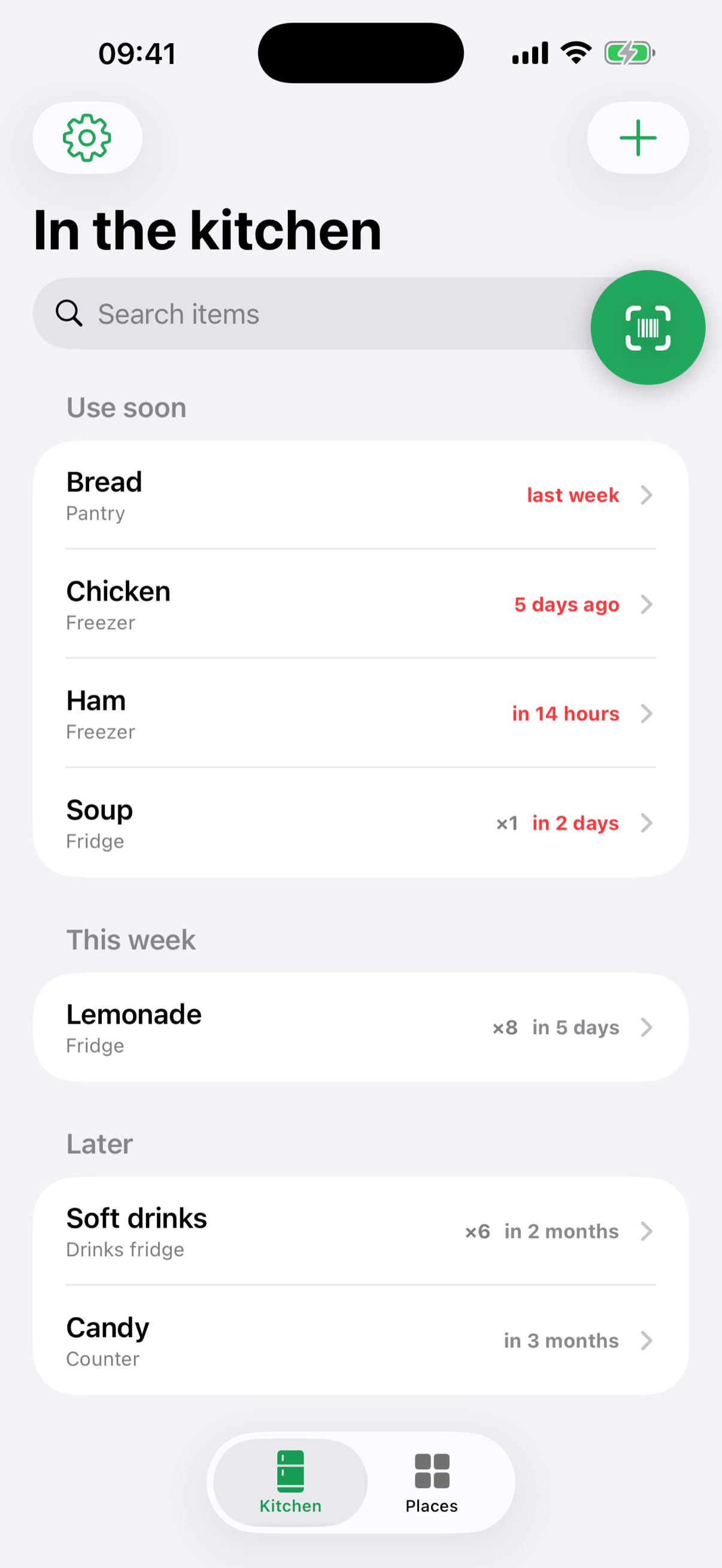
Your kitchen opens with a one-line brief: how many things to use soon, how many have expired, and what to eat first. Every item shows its place and a countdown, and the list is grouped into Use soon, This week, and Later, so the things about to turn are always at the top. Tap any item to see its details or to mark it as opened.
6. Keep an eye on it from your Home Screen
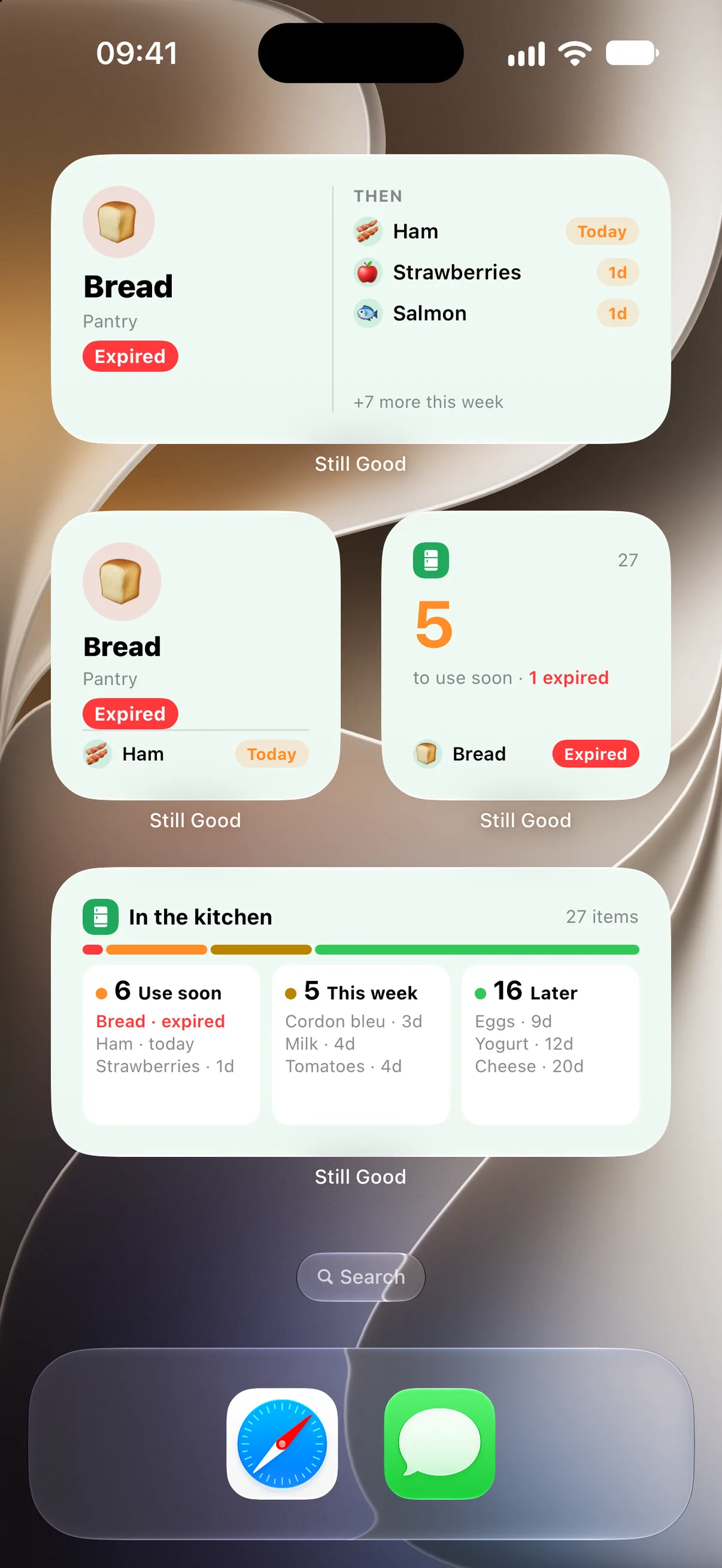
Still Good has three widgets. Expiring soon lists what is about to turn, Eat this first shows the one item to deal with now, and Kitchen at a glance shows how your whole kitchen is doing. Long-press your Home Screen, tap the plus button, and search for Still Good. Still Good also sends a reminder before anything runs out.
That is the whole loop. The next guides explain how Still Good works out a best-before date when you do not have one, how the shopping list and receipts work, and what the impact page tells you.